
Setting up more advanced listings is simple with Custom Attributes for variable products. Attributes are created and managed in your store settings, so once they’re set up, they can be used across all of your listings. That means no more repeatedly entering the same information on multiple products.
If you’re creating them for the first time, it can feel a little overwhelming — but don’t worry. We’ll walk through it step by step.
Custom Attributes
- Create new product : https://crafters.market/vendor-dashboard/products/add
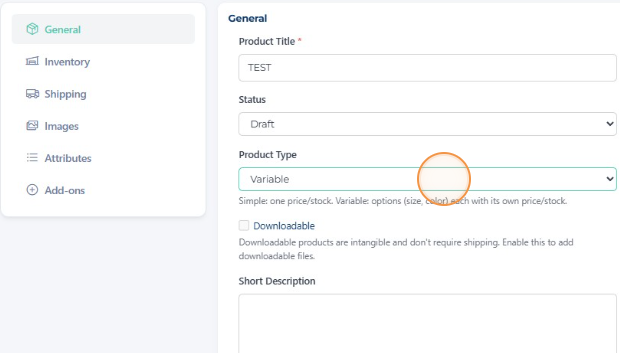
- Select Variable Product
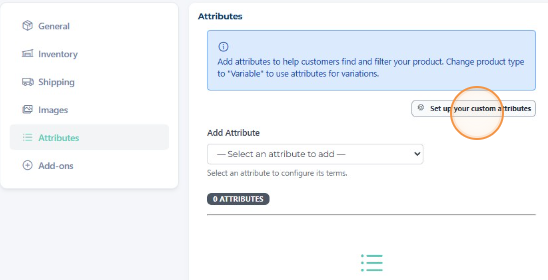
- Go to ‘Attributes’ and ‘Set up your custom attributes’ if you haven’t already done so.
- > Add New (E.g. – Pattern)
- > Enter Name & Save
- > Add Terms (E.g. – Polka Dot, Zig Zag, Stripes) You can also add more terms at a later date!
Manage and edit your Custom Attributes here: https://crafters.market/vendor-dashboard/settings/attributes/
Variations
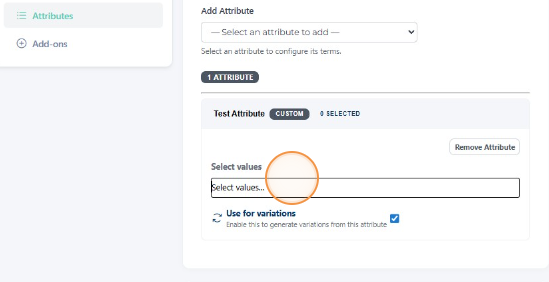
- Select your custom attribute from the drop-down menu
- Select the values appropriate for that particular listing
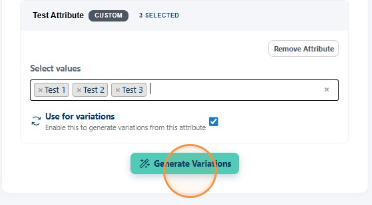
- Tick the ‘use for variations’ box & Generate your variations
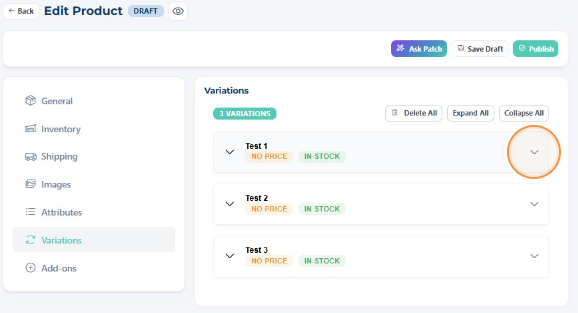
- Manage your variations via the ‘Variations’ tab, use the drop down arrow to manage stock levels, SKUs, price and images for each individual variation.
Don’t forget to do a preview & basket check to make sure your listing is in working order.