
If you post your orders with Royal Mail, you can link your Click & Drop account to your Crafter’s Market shop. Your orders then appear in Click & Drop with the customer’s name and address already filled in. When you post them, the tracking number comes back to us by itself and your customer is emailed. No more copying addresses or typing in tracking numbers.
This is included with the Plus and Premium plans. Setting it up takes about five minutes, and you only do it once.
Before you start
- A Royal Mail Click & Drop account. It is free to sign up at business.parcel.royalmail.com. If you already buy your postage there, you are ready.
- It does not matter which email address you use. Your Royal Mail account can be under a different email address to your shop.
Step 1: get your key from Click & Drop
To link the two, Click & Drop gives you a long code called an API key. You can think of it as a spare key that lets your shop do one job: send your orders across and read back the tracking.
- Log in to Click & Drop.
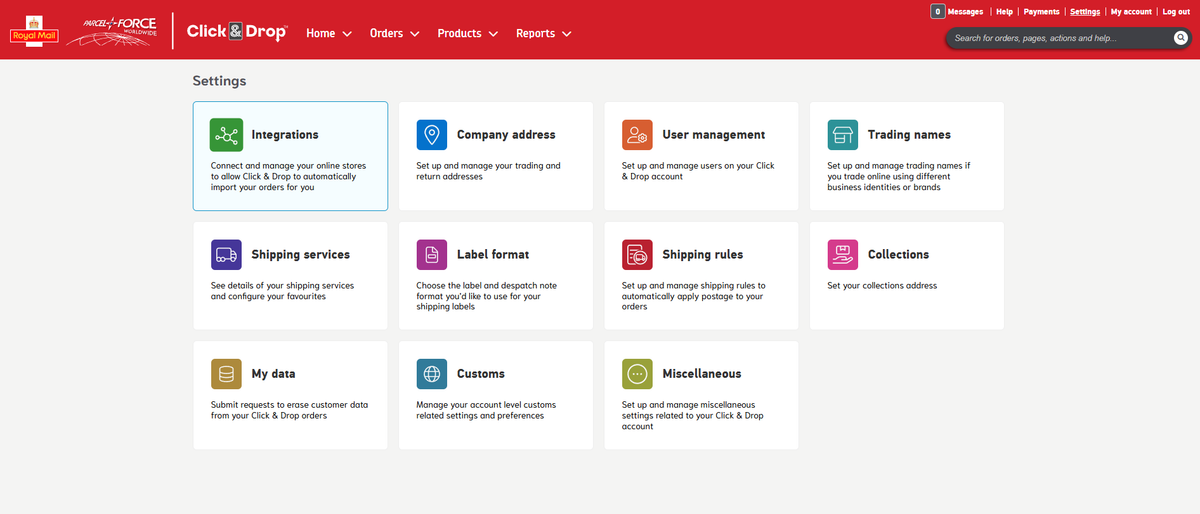
- Click Settings, then Integrations.
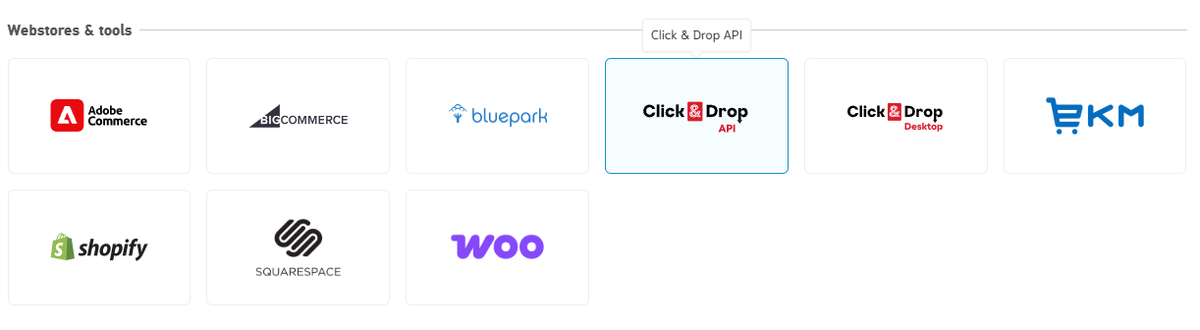
- Click Add a new integration and choose Click & Drop API.
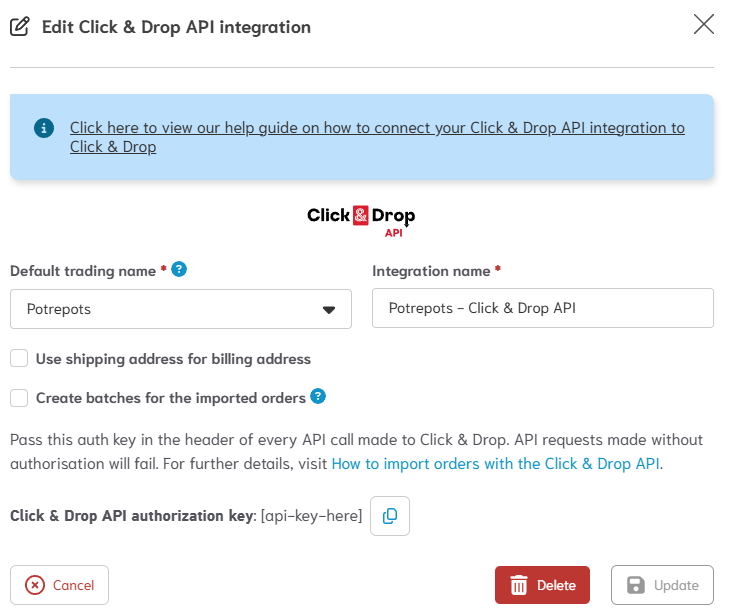
- Give it a name you will recognise, such as “Crafter’s Market”, and save it.
- Royal Mail will show you an authorisation key. Copy the whole thing. On a PC, highlight it and press Ctrl and C together. On a Mac, press Cmd and C.
Step 2: connect it to your shop
- In your Crafter’s Market dashboard, click Settings.
- Click Integrations, then Royal Mail Click & Drop.
- Click in the API key box and paste your key. On a PC press Ctrl and V. On a Mac press Cmd and V.
- Click Connect.
We check the key with Royal Mail straight away. When it works, the page says You’re connected and shows the last four characters of your key. If it says the key was not accepted, the most likely reason is that part of it was missed when copying. Go back to Click & Drop and copy it again.
Step 3: tell us about your usual parcel
On the same page you will see Your usual parcel. Fill in two things:
- Size: the size you send most often, such as Large letter or Small parcel.
- Default weight: roughly what one of your orders weighs once it is packed, in grams.
Click Save Changes. We use these for any product that does not have its own weight yet (see the next step). We will never pick a size smaller than the one you choose here.
Step 4: add a packed weight to your products
This step is optional, but it means Royal Mail gets the right weight for every order. When you edit a product, you will see a Packed weight box. Enter the weight of one item in grams, including its packaging. Kitchen scales are fine for this. Once you are connected, the box is marked Sent to Royal Mail so it is easy to spot.
For each order, we add up the packed weights of everything in it and choose the parcel size for you. So two mugs at 400g each are sent across as 800g.
If your product comes in options that weigh different amounts, such as a small and a large size, open the Variations tab. Each one has its own Packed Weight box. Leave it empty and it will use the product’s weight.
Step 5: send your orders to Click & Drop
There are three ways to do this. Use whichever suits you.
- One order at a time: open the order and click Send to Click & Drop. Just underneath, you will see the weight and size we are sending. To change them for this order only, click Change.
- Several at once: on your Orders page, tick the orders you want and click Send selected to Click & Drop.
- Automatically: in Settings, Integrations, Royal Mail Click & Drop, switch on Send new orders automatically. New paid orders will then appear in Click & Drop a few minutes after the customer checks out.
If a customer has bought from you and from other makers in the same basket, only your items are sent.
Step 6: buy your postage and post it
Buy your postage and print your label in Click & Drop, just as you do now. You can still change the weight or service there before you pay. Then mark the order as despatched in Click & Drop.
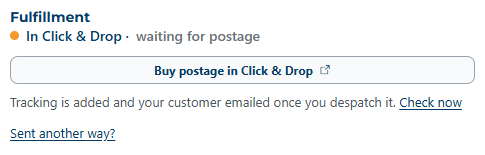
That is all you need to do. We check Click & Drop every 30 minutes. Once the order is despatched with a tracking number, we mark it as dispatched in your shop and email your customer their tracking link. If you would rather not wait, open the order and click Check now.
If you have a Royal Mail Online Business Account, you will also see a Print label button on the order page. Without one, Royal Mail only lets you print labels inside Click & Drop, which works just as well.
Posting an order another way
Sometimes you might post an order at the Post Office counter, use a different courier, or send it Royal Mail 2nd Class with no tracking. That is fine. On the order page:
- Click Sent another way?
- Choose the Carrier, for example Royal Mail.
- Type in the Tracking number. If there isn’t one, tick Sent without tracking instead.
- Click Mark as dispatched. Your customer is emailed straight away.
Orders with tracking are paid out a week sooner, so it is worth adding it when you have it. If you sent the order to Click & Drop first, delete it there so it is not posted twice.
How we keep your key safe
- Your key is locked away (encrypted) as soon as it reaches us. It is never stored as plain text.
- Nobody can see it again, not you and not our team. You will only ever see the last four characters.
- It is only used to send your orders and bring back labels and tracking. It only ever talks to Royal Mail.
- We email you whenever a key is connected or removed, so you will know if anything changes.
Disconnecting
Go to Settings, Integrations, Royal Mail Click & Drop and click Disconnect at the bottom of the page. This deletes your key from our systems. Orders already in Click & Drop stay there. If you ever want to cut the link from Royal Mail’s side too, delete the key in Click & Drop under Settings, Integrations.
Common questions
- I can’t see Royal Mail in my Settings. It is part of the Plus and Premium plans. You can upgrade from Settings, Subscription.
- It says “Your key stopped working”. Click & Drop no longer accepts the key, usually because it was deleted or replaced in Click & Drop. Click Disconnect, then follow Steps 1 and 2 again with a new key.
- I deleted an order in Click & Drop by mistake. The order page will tell you, and you can click Send to Click & Drop again.
- The weight was wrong. You can change it in Click & Drop before you buy the postage. To get it right next time, check the packed weight on the product.
- Will Royal Mail contact my customer? Only if you switch on Share customer email and phone for Royal Mail delivery updates in your Royal Mail settings. Royal Mail then uses them to send delivery updates on tracked services. It is off unless you choose it.
Still stuck? Get in touch and we will help you get set up.