
Joining a new platform can be daunting – but fear not! Crafter’s Market UK has been designed to be as user friendly and intuitive as possible. In this article we’ll just be taking a quick look at how to navigate to your Account and your Vendor Dashboard.
My Account
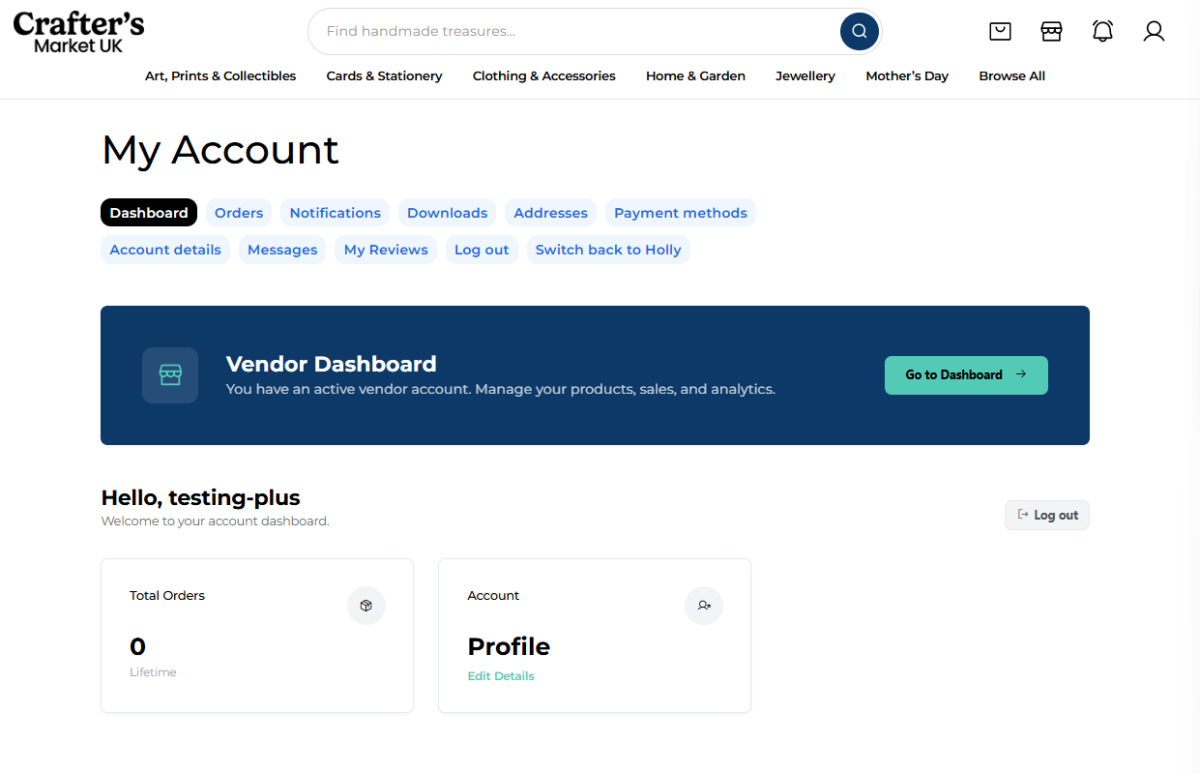
Your account gives you an overview of your store and your activities as a customer. When you sign in you’ll be redirected to this page but it can also be accessed via the top right hand icons.
Vendor Dashboard
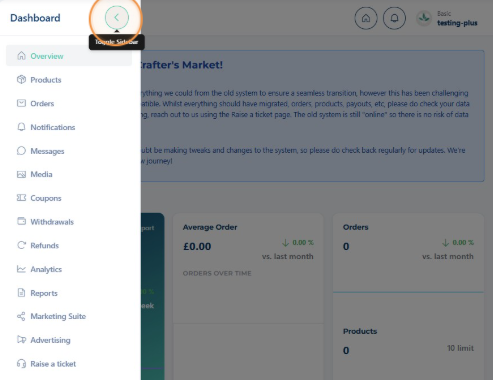
This is where, for a vendor, all the exciting bits are! Manage your store settings, products, analytics, media and more. You can navigate to your dashboard via the ‘My Account’ page.
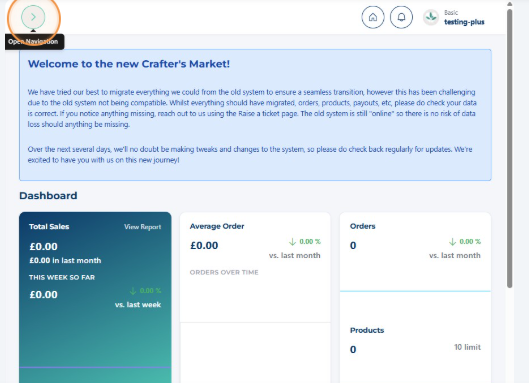
Completing Store Set-Up
We know how exciting it is to start adding products — but we recommend finishing your store setup first.
Make sure you:
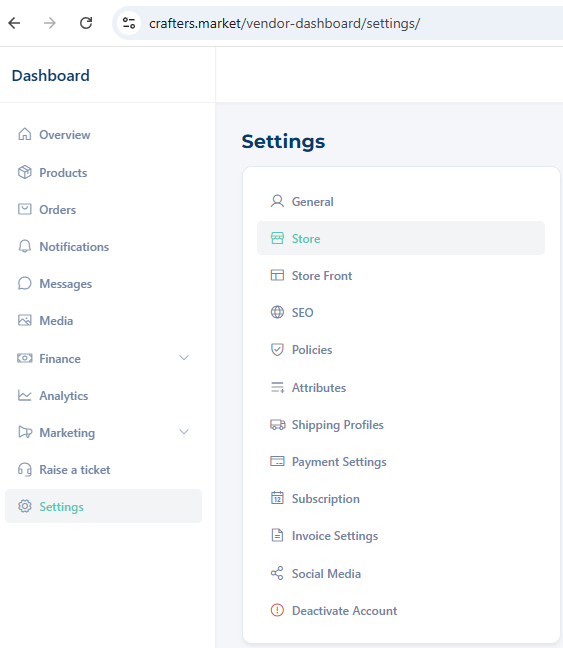
- Add Store Phone & Email (You can choose not to have these visible on your store but this information needs to be filled in order to receive order/message notifications)
- Add Store Description
- Add Your Logo
- Upload Your Banner Image
- Fill Out Your About information
- Add Social Media Links (So customers can follow you!)
- Add SEO Descriptions
- Decide if you want to use shipping profiles or per-product shipping (See link below)
Why this matters:
- Creates a professional, trustworthy storefront
- Gives customers confidence in your shop
- Makes your first product listings stand out more
Explore all the tabs – The more acquainted you make yourself with your menu the easier you will find it.
Before you start adding products, there’s one very important step that you MUST do:
Connect to Stripe First
Before adding products, make sure your account is connected to Stripe.
Why?
- Stripe allows us to pay you automatically when a sale is made.
- If Stripe isn’t connected you won’t be able to receive payments.
Check your vendor dashboard and follow the prompts to connect your Stripe account — it only takes a few minutes.
Once your store setup is complete and you’ve connected to Stripe, you can add your products to your heart’s content!
Adding Your First Product
Once Stripe is connected, you’re ready to create your listing.
Go to your dashboard:
Dashboard → Products → Add New Product
You’ll be able to enter:
- Product name
- Description
- Images
- Pricing
- Shipping options
Quick Tips for Great Product Listings
Creating a strong product listing helps your items sell faster and makes your listing eligible for Google Shopping. Keep these tips in mind:
- Clear, high-quality images – multiple angles, well-lit, show details
- Descriptive title – include keywords customers might search for
- Detailed description – materials, size, use, care instructions
- Pricing – make sure it covers materials, time, and shipping
- Shipping & delivery info – give realistic dispatch estimates
- SEO & keywords – think like a customer searching for your product
✨ Bonus tip: A well-written listing not only attracts buyers but also reduces customer questions.
Learn More
Want to make your listings even better? Check out these guides:
- Patch AI – How to Write Better Product Listings Faster – Save time and create polished, professional descriptions.
- Choosing Simple vs Variable Products – Understand when to use single-item listings vs multiple options or variations.
- Shipping Profiles vs Per-Product Shipping – Know your shipping options.